Getting Started with Rikaitan
This introduction will help you quickly familiarize yourself with the basics and set you up for a smooth language learning experience.
-
Learn Faster
Hover over words to see what they mean instantly.
-
Create Flashcards
Send words straight to Anki in one click, exactly as you encounter them while reading.
-
Works Everywhere
Use Rikaitan on news articles, novels, subtitles, PDFs, and more.
-
Hear Pronunciation
Play native audio directly from native speakers from local sources or over the internet.
Installation
Rikaitan is available for Firefox-based and for Chromium-based web browsers. We recommend LibreWolf or ungoogled-chromium as your everyday web browser.
-
Chrome Stable
The stable release recommended for most users.
-
Chrome Beta
Try the latest features before they reach stable.
-
Firefox Stable
The stable release recommended for most users.
-
Firefox Beta/Development
Download and side-load manually for testing versions.
Manual Installation Required
Firefox doesn't allow testing extensions in the marketplace. Download your desired version and side-load it manually. You only need to do this once—updates are automatic.
On Android devices you can install Fennec and then install Rikaitan following instructions for Firefox.
Mozilla is making it difficult to install extensions on Android! To install an extension in Firefox for Android (Fennec) from a file, download and save the extension file to your device. In Firefox, open Settings, then About Firefox (Fennec). Tap the Firefox logo five times quickly to unlock hidden menu items. Return and open Settings again, then choose Install Extension from File. Browse to and open the saved extension file. When prompted, tap Add. The extension appears in the Extension list of installed extensions and is ready to use.
Mobile platform note: You can use Rikaitan on Android with Firefox, Edge, or Kiwi-based browsers like Elixir. Chrome for mobile and iOS aren't supported.
Rikaitan Setup
After a successful installation, Rikaitan will display a welcome page. If you don’t see it, that’s okay—you can complete setup at any time by opening Settings from the Quick Actions menu.
Quick Actions
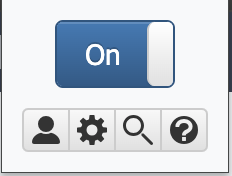
Click the  Rikaitan button in the browser bar to open the quick-actions popup.
-
 Profile
Quickly switch between profiles with different settings or languages.
To create new profiles, head to
Settings. -
 Settings
Your control hub.
Make profiles, configure dictionaries, switch themes, and more.
-
 Search
Open the search page to easily look up whole sentences and more.
-
 Help
Help
See the relevant links and information about Rikaitan.
Installing Dictionaries
Dictionary Required
Rikaitan requires at least one dictionary to function. An orange exclamation mark over the icon indicates no dictionaries are enabled.
To install dictionaries:
- Navigate to Rikaitan's
WelcomeorSettingspage. - Choose your desired language from the
Languagedropdown. - Click on
Get recommended dictionaries...
You will see a list of publicly available Rikaitan dictionaries for the selected language. Install as many as you like — you can enable, disable, or reorder them later.
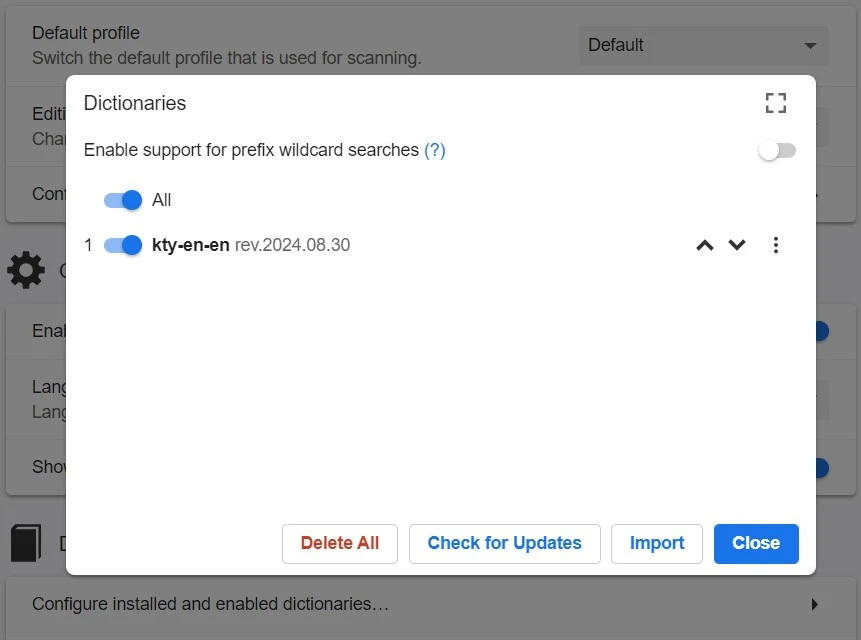
If you want to upload your own dictionaries to Rikaitan, you can do so via Configure installed and enabled dictionaries → Import.
For more on dictionaries, head over to the Dictionaries page.
Learning multiple languages
To use Rikaitan with multiple languages, it’s best to create a separate profile for each language.
Go to Settings → Profile → Configure Profiles… → Add to create a new profile.
When setting it up, you can:
-
Assign a unique modifier key (for example, Alt)
-
Add conditions so the profile activates only on specific websites or URLs
Once the profile is created, return to the same section and set Active Profile to the new profile. Then, install the dictionaries needed for that language.
Repeat this process for each language you want to use. After setup, you can switch languages instantly by changing profiles from the Quick Actions menu or by using the assigned modifier keys.
Basic Usage
Now that we have our dictionaries installed, you can now use Rikaitan to read anything in your desired language.
Info
Open any webpage, such as:
- News articles
- Wikipedia
- Online novels or blogs
- Social media
Rikaitan works anywhere selectable text exists.
Scanning local files and PDFs
In order to use Rikaitan with local files in Chrome, you must first tick the Allow access to file URLs checkbox for Rikaitan on the extensions page.
In addition, to scan PDF files on your local machine, use the Rikaitan PDF Viewer.
Using Rikaitan
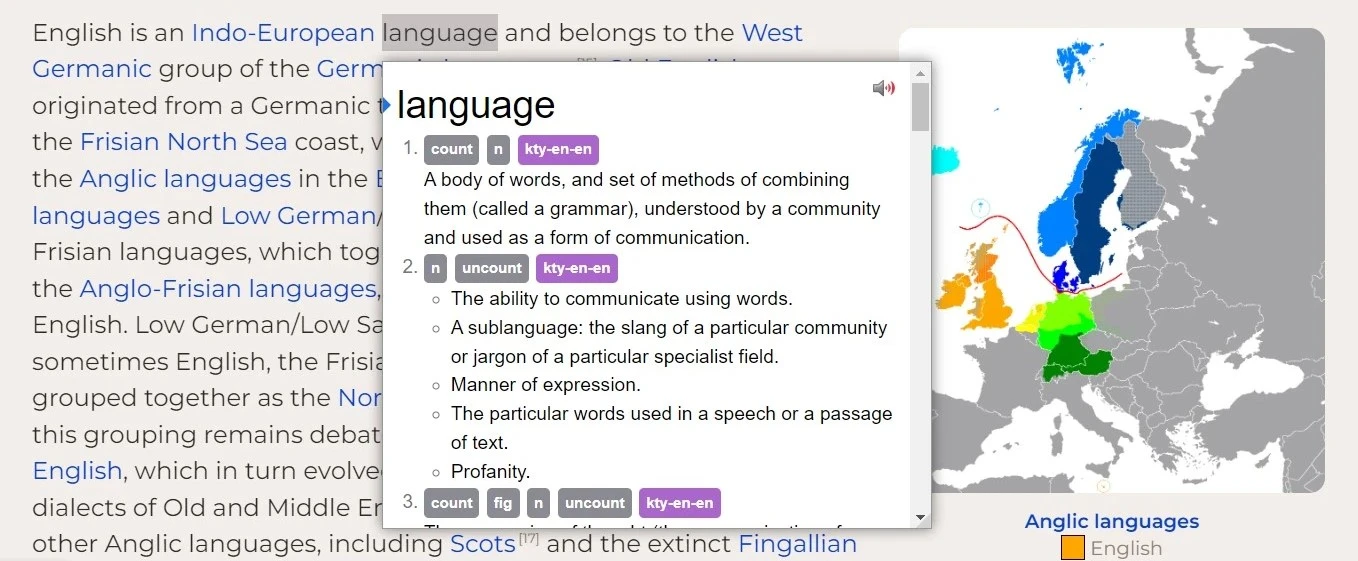
To read unknown words,
- Hold the modifier key (default: Shift)
- Move your cursor over the word.
If a definition is found, a popup window will appear.
Tip
You can customize the modifier key in Settings to suit your preferences (e.g., Ctrl, Alt, or No Modifier to have the popup open on every word).
Listen to Audio
-
Audio Pronunciation
If you want to hear the word pronounced by native speakers, click the
 speaker button in the popup.
No Audio
If an audio sample isn't available, you'll hear a short click. For more audio sources and configuration options, see Audio Configuration.
Export Flashcards to Anki
-
Spaced Repetition
Rikaitan integrates with Anki, a spaced repetition flashcard app loved by many language learners. To export the word as a flashcard, click the
 export to Anki button in the popup.
Anki Integration
If Anki is not running or the connection settings are incorrect, this button will appear grayed out. If you haven't set up Anki integration this button will not appear.
Make sure Anki is running in the background and that the integration is configured correctly. For more configuration options, see Anki Integration.
Need Help?
-
Frequently Asked Questions
Find answers to common questions about setup, usage, troubleshooting, and more.
-
Community
Join our community for support and tips, or just to hang out!
or visit our home at :fontawesome-brands-community: community · Reddit · GitHub !